Areva Keynote Template: A Practical Look at Its Design, Structure, and Real-World Fit
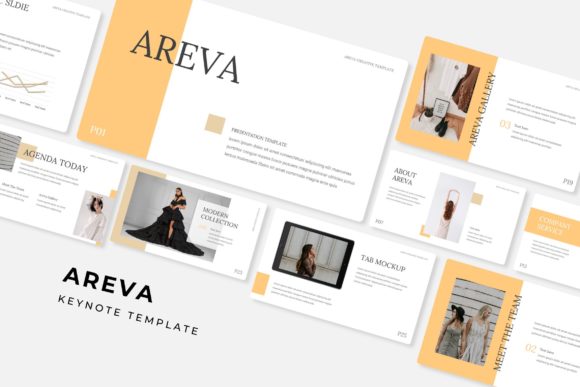
When you are preparing a presentation that needs to communicate complex ideas clearly, the choice of template can save hours of work or become a source of frustration. The Areva Keynote Template is one of those resources that tries to offer both breadth and precision. With 150 total slides spread across five color variations, 30 slides per template, and a structure that includes handcrafted infographics, section breaks, gallery layouts, and portfolio slides, it is designed to cover a lot of ground. But volume alone does not make a template useful. What matters is how those slides actually behave when you drop your own content into them, and whether the design choices work for the kind of presentation you are building.
This article walks through what the Areva Keynote Template offers, where it fits best, and where you might need something else. The goal is to help you decide whether this template is the right tool for your specific project, or whether another approach might serve you better.
What Makes the Areva Keynote Template Distinct
At its core, the Areva Keynote Template is a presentation toolkit built around modularity and visual consistency. The five premade color variations are not just palette swaps; each one is designed to maintain readability and hierarchy across all 30 slides in that set. That means you can pick a color direction early and stay with it without having to manually adjust contrast, text legibility, or accent balance later.
The template relies on master slides, which is a technical detail that matters more than most people realize. When you use master slides, any change you make to the master layout updates every slide that depends on it. That is a huge time saver if you need to adjust a footer, shift a logo position, or update a background element across dozens of slides. It also means that the drag-drop picture placeholders and resizable graphics are baked into the slide structure, so you are less likely to break alignment when you swap images or edit text.
The handcrafted infographics included in the template are another distinguishing feature. Rather than generic chart icons, these infographics are designed to convey specific types of comparisons, flows, and hierarchies. That matters because a good infographic should reduce cognitive load, not add to it. If the graphic already approximates the story you want to tell, you save time and your audience processes the information faster.
The gallery and portfolio slides are worth mentioning separately. Many presentation templates treat image grids as an afterthought, but the Areva template provides dedicated layouts for showcasing work, case studies, or visual content. For anyone presenting a portfolio, a product lineup, or a series of project results, these slides remove the need to build a layout from scratch.
What the Five Color Variations Actually Mean for Your Workflow
Having five color variations per template set gives you flexibility without requiring design skills. If you are pitching to a client with a specific brand palette, you can pick the variation that comes closest and then make targeted adjustments. If you are building an internal deck and want to differentiate sections, you can switch color sets between segments while keeping the same slide structure. The consistency across variations means you are not relearning the template each time you switch colors.
However, it is worth noting that these are premade color schemes, not fully customizable theme engines. If your brand colors fall far outside the provided palettes, you will need to do manual work to adapt the template. That is manageable, but it is not instantaneous. The template works best when you can work within one of the five schemes or close to it.
Comparing the Areva Keynote Template with Other Approaches
If you are evaluating the Areva Keynote Template, you are probably comparing it against two broad alternatives: fully custom presentations built from scratch, and other premium or free templates. Each approach has its own tradeoffs, and understanding them helps you decide where this template fits on the spectrum of effort versus control.
Custom Presentations versus a Structured Template
Building a presentation from scratch gives you total control over every pixel, but it demands time, design experience, and consistency management. If you are a solo professional or a small team without dedicated design support, the overhead of starting from zero can delay your delivery and introduce visual inconsistencies. The Areva Keynote Template removes that overhead by giving you a cohesive system. You still make decisions about content, imagery, and messaging, but you do not have to build the underlying structure.
The tradeoff is that a template imposes some constraints. You are working within its grid, its typography hierarchy, and its placeholder sizes. For most business, consulting, and creative presentations, those constraints are acceptable and even helpful because they enforce a baseline quality. But if your presentation requires highly unconventional layouts, large data displays that do not fit standard slide dimensions, or very specific visual narratives, a custom build may be the better path.
Other Premium Templates versus Areva
There are many premium Keynote templates available, and the main difference tends to be slide count, variety, and design philosophy. Some templates offer 40 or 50 slides with deep customization options but fewer visual directions. The Areva Keynote Template takes the opposite approach: more slides, more color variations, and a broader range of built-in layouts like infographics, section breaks, and portfolio pages.
That breadth is useful if you are preparing a presentation that needs to cover multiple types of content: data slides, narrative introductions, visual showcases, and summary pages. If your presentation is more uniform for example, a straightforward pitch deck with mostly text and a few charts a smaller, more focused template might feel less heavy. The Areva template is best suited for presentations that benefit from visual variety and modular reuse.
Strengths and Tradeoffs in Everyday Use
Understanding where the Areva Keynote Template shines versus where it may feel limiting comes down to a few practical factors: how you work with images, how much you rely on infographic elements, and how much control you need over the slide master.
Image Handling and Placeholder Logic
The drag-drop picture placeholders are a genuine productivity gain. Instead of cropping and resizing images manually, you drop a photo into the placeholder, and it fits automatically within the composed layout. That is useful when you are working with a large batch of images, such as headshots, product photos, or location shots. It also reduces the chance of accidentally stretching or misaligning an image.
The pixel-perfect illustrations included in the template further support a polished look. These are not generic clip art; they are designed to render cleanly at different sizes without losing detail. For presentations that are projected on large screens, this matters because low-resolution graphics become obvious at scale.
The Infographic Factor
Handcrafted infographics are a strength of this template, but they also represent a potential limitation. If your data or narrative does not match the available infographic formats, you may find yourself forcing content into a prebuilt shape. That is not ideal. Good infographics should emerge from the story you want to tell, not the other way around. Before committing to this template, scan the infographic slides and ask yourself whether they align with the kinds of comparisons, flows, or hierarchies your presentation requires.
If they do, the infographics will elevate your deck significantly. If they do not, you will likely end up hiding or deleting several slides, which is fine but reduces the value of the template for your specific use case.
File Structure and Cross-Platform Considerations
The Areva Keynote Template includes five PPTX files in widescreen format, which means it works across Keynote and PowerPoint environments. That cross-compatibility is useful if you collaborate with people who use different presentation software. However, keep in mind that some advanced slide master behaviors or graphic effects may render slightly differently between Keynote and PowerPoint. It is always worth testing your final deck in the environment where it will be presented.
The template also provides a readme file with font details and a free font download link. Using the recommended fonts is important because substituting fonts can shift the entire layout. If your organization restricts font installation or requires specific corporate typefaces, you may need to test compatibility before committing to the template.
When the Areva Keynote Template Is the Right Choice
This template fits best in scenarios where you need a professional, visually consistent presentation with moderate to high image and infographic content, and you want to minimize the time spent on layout and formatting. Specific situations where it tends to work well include:
- Client pitches that require a polished look but are assembled under tight deadlines.
- Portfolio reviews or case study presentations where image quality and layout matter.
- Internal strategy decks that need to convey data, timelines, and priorities across multiple sections.
- Conference talks where the audience expects clean design and the presenter needs slides that advance seamlessly.
In these contexts, the template reduces the friction between your ideas and the final presentation. You spend less time aligning boxes and more time refining your message.
When You Might Need Another Option
There are also clear situations where the Areva Keynote Template may not be the best fit:
- Highly technical presentations with dense data tables, complex diagrams, or large code snippets may require a more flexible grid or the ability to break away from preset layouts.
- Brand-strict environments where every color, font, and spacing rule is mandated may require a custom template built from the ground up to avoid manual adjustments.
- Minimalist presentations that rely on very few slides, a lot of white space, and a singular visual focus may feel crowded by the breadth of layouts available.
- Collaborative decks that pass through multiple hands with varying software versions may encounter compatibility quirks that slow production.
None of these are dealbreakers by themselves, but they are worth weighing before you invest time in the template. If your project fits one of these scenarios, consider whether the template still saves you time or whether a different approach would cause less friction.
Practical Decision Factors
To decide whether the Areva Keynote Template is right for you, consider three things: the volume of slides you actually need, the type of content you will present, and how much control you want over the final look.
If you are building a 10-slide deck with minimal images, the template still works fine, but you will use only a fraction of what it offers. If you are building a 40-slide deck that moves from narrative to data to portfolio to summary, the template can carry a lot of that weight.
Look at the infographic and portfolio slides specifically. If those match your content, the template will feel like a shortcut. If they feel mismatched, you will do more adapting than you may expect.
Finally, remember that the photographs shown in the preview are for illustration only. You will need your own images or licensed stock photography. That is standard practice, but it is worth factoring into your workflow and timeline.
A Note on Using the Template with Keynote versus PowerPoint
The Areva Keynote Template is delivered in PPTX format, which opens in both Keynote and PowerPoint. However, if you are a dedicated Keynote user, it is best to set up the file in Keynote from the start and work with its native inspector tools. The master slide structure translates well, but some PowerPoint-exclusive features may not carry over perfectly. Testing a few slides early in your process can save you from surprises later.
The readme file and free font download link are there to help you replicate the intended typography. Skipping the font setup can lead to text reflow and layout shifts, so do not overlook that step.
Final Perspective
The Areva Keynote Template offers a substantial collection of slides, infographics, and layout options that can serve a wide range of professional presentations. Its five color variations, master slide structure, and drag-drop placeholders make it a practical choice for anyone who wants design consistency without building everything from scratch. It is especially valuable when your presentation needs to cover multiple content types and you want to maintain a polished look across all of them.
At the same time, it is not a one-size-fits-all solution. If your project requires extremely tight brand control, unconventional layouts, or a very restrained slide count, you may find that a different template or a custom approach serves you better. The key is to match the template to the presentation, not the other way around.
By understanding what the Areva Keynote Template includes, how it behaves in real workflows, and where its strengths and limitations lie, you can make a more informed decision about whether it is the right foundation for your next presentation.