Havana Power Point Template: A Practical Look at Its Design and Utility
When you are preparing a presentation that needs to communicate clearly and look polished, the choice of template often determines how much time you spend on formatting versus refining your message. The Havana Power Point Template enters this space as a resource aimed at users who want both visual consistency and variety across their slides. With 150 total slides distributed across five color variations, it offers a structure that goes beyond a simple set of backgrounds. This article takes a practical look at what the template includes, how it performs in real use, and who is most likely to benefit from investing time in it.
What Makes the Havana Power Point Template Distinctive
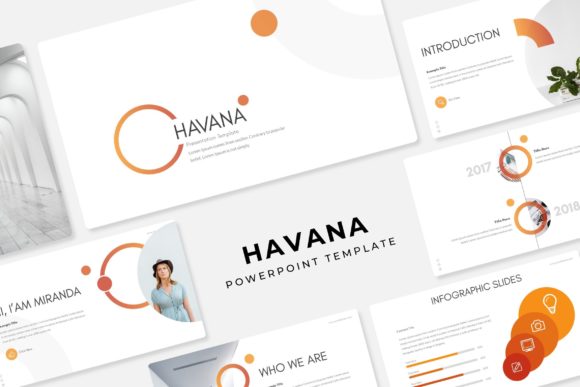
At first glance, the most obvious feature is the volume of content. The template delivers 150 slides, organized into five separate color variations with 30 slides each. That means you are not locked into a single palette. Whether your brand leans toward muted neutrals, bold accents, or cooler tones, you have a ready-made option that can be applied without rebuilding your deck from scratch. Each variation is contained in its own PPTX file, and all files are provided in widescreen format, which is now the standard for most screens and projectors.
The template is built around handcrafted infographics, section break slides, and gallery or portfolio pages. These are not generic placeholders. The graphics are described as pixel-perfect illustrations, and they are designed to be resizable and editable without losing clarity. That matters when you need to adjust an element to fit your specific data or narrative rather than forcing your content into a fixed shape.
Another structural advantage is the reliance on master slides. When you drag and drop images into the picture placeholders, the positioning and scaling are handled automatically. This reduces the risk of misaligned visuals and saves time, especially when working with multiple images across a long presentation.
Examining the Slide Library and Structural Depth
A 150-slide library can be intimidating if you do not know what is actually in it. In the Havana Power Point Template, the slides are not simply 30 copies of the same layout in different colors. Each color set includes a full range of slide types, which means you get title slides, content slides, infographic pages, section dividers, portfolio grids, and closing slides within every variation. This design makes it possible to build a complete presentation using a single color theme without having to borrow slides from another set.
The section break slides are particularly useful for longer presentations. When you move from one topic to another, a dedicated section slide signals the transition clearly to your audience. It gives them a mental reset and helps organize your narrative. Similarly, the gallery and portfolio slides are built with image placement in mind, offering grids and layouts that display multiple visuals without looking cluttered.
The infographic elements deserve attention as well. They are handcrafted rather than auto-generated, which usually means better alignment, more intentional spacing, and a cohesive visual language. You will find timeline graphics, comparison layouts, data visualization frames, and process flows. These are not meant to replace serious data analysis tools, but for summarizing key points or illustrating trends, they work well within the presentation environment.
How the Template Performs in Real-World Settings
In practice, the value of any template depends on how much editing it requires before it looks like your own. The Havana Power Point Template is designed for users who want to edit efficiently. Because it is based on master slides, changes made to fonts, colors, or recurring elements apply globally. If you decide to switch from one of the five premade colors to something more specific, you can adjust the master slide and the entire deck updates in one step.
For Business Pitches and Client Presentations
If you are preparing a pitch deck, the professionalism of your slides can influence how your content is received. The clean lines, consistent spacing, and purposeful use of imagery in this template support a confident delivery. The section breaks help you pace the presentation, and the infographic slides allow you to present market data or product benefits visually. Since the template includes 30 slides per color variation, you have enough layouts to cover a typical pitch deck without repeating the same slide design too often.
For Portfolio and Gallery Displays
Creative professionals such as photographers, designers, architects, and artists will find the gallery and portfolio slides particularly useful. The picture placeholders are set up for drag-and-drop functionality, so you can quickly populate a slide with your work. The layouts are designed to let the images stand out, with minimal decorative interference. This is important when the visual content itself is the main message.
For Internal Reports and Team Updates
Even internal presentations benefit from clear structure. If you regularly report on project status, quarterly results, or strategic plans, having a consistent template saves time and ensures that your team focuses on the data rather than on slide inconsistencies. The infographic elements help transform bullet points into visual summaries, making the information easier to digest during meetings.
Quality of Design and Production Value
The term "pixel-perfect illustrations" is used in the template description, and it is worth examining what that means practically. The graphics are rendered at a high resolution and maintain their sharpness when scaled. This is not always the case with presentation templates, where illustrations may appear blurry or pixelated once you resize them. The fact that the graphics are editable also means you can change colors, adjust sizes, or combine elements without breaking the visual flow.
The five color variations have been selected to cover a range of common use cases. While the exact colors are not specified in the product description, having five distinct options gives you flexibility. If you work with clients who have specific brand guidelines, you may still need to customize further, but starting from a palette that is already balanced saves time.
The font used in the template is not included directly in the file, but the Readme document provides a free download link. This is a standard practice in presentation templates and keeps the file size manageable. As long as you install the font before editing, your slides will render as intended. If you share the file with someone who does not have the font installed, you can embed the font in PowerPoint to preserve the design.
Ease of Use and Workflow Integration
One of the strongest arguments for this template is its compatibility with the way most PowerPoint users work. Because it is based on master slides, you do not need to manually align elements on each page. The picture placeholders are pre-positioned, so inserting an image is a simple drag-and-drop action. This reduces the friction of building a deck and allows you to focus on content rather than micro-adjustments.
The fact that the template comes as five separate PPTX files, each with a different color set, means you can choose your palette at the start and work within that file. If you later want to explore another color option, you can copy your content into the other file or use PowerPoint's color theming tools to switch more selectively. The widescreen format ensures that your slides fit modern displays without letterboxing or distortion.
For users who collaborate with teams, the consistency enforced by master slides is a practical advantage. When multiple people contribute to a presentation, the template keeps the visual language uniform. This reduces the time spent on final cleanup and review.
Who Benefits Most from the Havana Power Point Template
Given its structure and design focus, the Havana Power Point Template suits a broad range of users, but some will find it more immediately useful than others. Marketers and business development professionals who create client-facing decks will appreciate the variety of infographic slides and the clean section breaks. Freelancers and consultants who need to produce polished presentations quickly will benefit from the editable graphics and drag-and-drop placeholders.
Educators and trainers who develop course materials or workshop slides can use the template to maintain visual consistency across multiple sessions. The gallery slides are useful for showcasing student work or case studies. Bloggers and content creators who present at conferences or webinars will also find the portfolio layouts helpful for displaying their work or personal brand.
Small business owners who do not have a dedicated design team can use this template to produce professional-looking presentations without hiring a designer. The five color variations give them room to match their brand colors or experiment with different looks for different audiences.
Practical Limitations to Consider
No template is perfect for every scenario, and the Havana Power Point Template has a few limitations worth noting. First, while the infographic elements are well-designed, they are not dynamic charts. If you need to present live data that updates frequently, you will still need to use PowerPoint's native chart tools or embed external visuals. The infographics are best for static summaries and conceptual illustrations.
Second, the template's reliance on a specific font means you must install that font to achieve the intended look. If you work in a restrictive corporate environment where font installation is not allowed, you may need to substitute a similar typeface, which could alter the visual balance. The Readme file does include the font link, but this extra step can be a friction point for some users.
Third, the photographs shown in the preview are not included. This is clearly stated in the product description, but it is something to keep in mind when evaluating the template. The slide layouts are designed to showcase images, so you will need your own high-quality photos or illustrations to fill those placeholders. For users who do not have a library of relevant images, this means additional time spent sourcing visuals.
Finally, 150 slides across five color variations may be more than some users need. If you only require a small deck for a single presentation, the volume of content might feel overwhelming. However, you can simply delete the slides you do not need, and the master slide structure will ensure that the remaining pages remain consistent.
Final Considerations for Potential Users
The Havana Power Point Template is a well-structured resource for anyone who regularly creates presentations and wants to reduce formatting time while maintaining a professional look. Its strengths lie in the variety of slide types, the handcrafted infographics, and the ease of use provided by master slides and drag-and-drop placeholders. The five color variations give you flexibility without requiring extensive customization, and the 30-slide sets per color mean you can build a full deck within a single theme.
For professionals who value consistency and efficiency, this template offers a practical foundation. It is not a tool that will write your content or design your data visualizations from scratch, but it provides a solid framework that respects the time you invest in preparing your message. If you are comfortable with basic PowerPoint editing and you need a template that looks intentional rather than generic, the Havana Power Point Template is worth considering for your next project.