Feature Google Slide Template: A Versatile Tool for Modern Presentations
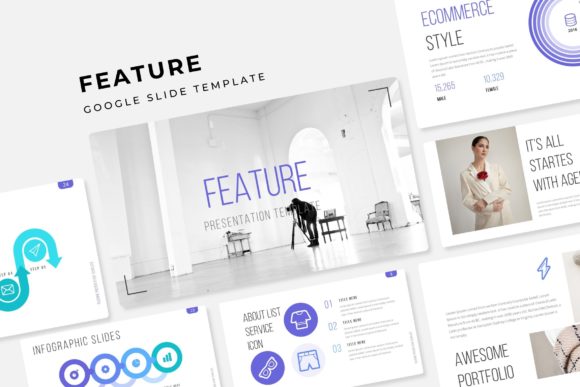
Presentations are everywhere. Whether you are pitching a new product, presenting quarterly results, or teaching a workshop, the way you structure your slides can determine how well your message lands. The Feature Google Slide Template offers a complete, color-customizable solution that goes beyond basic slide decks. With 150 total slides organized into five premade color variations — 30 slides per template — it is built for people who need variety, consistency, and visual polish without starting from scratch each time.
But what does that actually mean for someone like you, who might be preparing for a client meeting, a conference talk, or an internal training session? Let us walk through real-world situations where this template shines, how different users can extract value from it, and what to keep in mind before committing to a specific design approach.
Why 150 Slides across Five Color Variations Matters in Practice
Most presentation templates give you a handful of slide layouts — maybe ten or fifteen — and you end up stretching them to fit your content. The Feature Google Slide Template flips that dynamic. With 150 slides total, split across five distinct color themes, you are not forced to reuse the same layout over and over. Each color variation comes with its own 30-slide set, meaning you can switch between a professional navy palette for a board meeting and a more vibrant pastel set for a creative workshop, all from the same base template.
Consider a marketing agency pitching to two different clients in the same week. One client is a conservative financial firm seeking trust and stability. The other is a lifestyle startup that values energy and visual flair. With this template, you can apply the appropriate color variation to each pitch deck without redesigning your core content. The handcrafted infographics, section break slides, and gallery layouts remain consistent, but the overall tone shifts to match each audience.
For freelancers, this means you maintain a professional identity across projects while staying flexible. For in-house teams, it reduces the time spent manually adjusting colors and slide elements every time a new initiative rolls out.
Handcrafted Infographics That Save Time and Improve Clarity
Infographics are one of the most effective ways to communicate data, timelines, and workflows. But building them from scratch in Google Slides can be tedious, especially if design is not your primary skill. The Feature Google Slide Template includes handcrafted infographic slides that are ready to populate with your own information.
Imagine you are a project manager rolling out a new software implementation. You need to show the rollout timeline, milestones, and team responsibilities. Instead of wrestling with shapes and connectors, you drop your content into the prebuilt infographic layouts. The text placeholders guide you, and the visual hierarchy is already established. You simply update the numbers and descriptions.
This is also helpful for educators and trainers. If you teach business strategy or marketing analytics, you can use the infographic slides to illustrate frameworks like SWOT analysis, funnel stages, or customer journey maps. Learners absorb information faster when it is presented visually, and having a set of polished infographics ready to go means you spend less time on slide mechanics and more on teaching.
Section Break Slides for Logical Flow and Audience Engagement
A common problem in longer presentations is audience fatigue. When slides blur together, attention drops. Section break slides act as visual resets, signaling that a new topic is about to begin. The Feature Google Slide Template includes dedicated section break slides within each color variation.
Picture yourself delivering a two-hour training session on data privacy compliance. Your content naturally divides into three parts: regulations, company policies, and employee responsibilities. Without clear breaks, your audience may struggle to follow the transition between these topics. By inserting a section break slide at the start of each part, you give listeners a moment to refocus. The design of the section break — often using bold typography, contrasting background colors, or minimal visual elements — signals a shift without requiring extra explanation from you.
Sales professionals can also benefit from this. When presenting a multi-phase proposal, a section break slide between the current state analysis and the proposed solution helps prospects mentally prepare for new information. It creates a small pause that can make your recommendations feel more deliberate and strategic.
Gallery and Portfolio Slides for Visual Storytelling
If your work involves showcasing projects, products, or creative work, the gallery and portfolio slide layouts are especially useful. The Feature Google Slide Template provides structured layouts where images and brief captions sit together in a clean grid or modular arrangement.
Let us say you are a photographer or designer pitching to a new client. Instead of inserting images one by one into generic slides, you use the portfolio layouts to present your best work with consistent spacing, alignment, and visual breathing room. The picture placeholders are drag-and-drop enabled, so you simply pull your images into the designated areas. The template does the alignment work for you.
Marketing managers can use gallery slides to showcase campaign results — such as social media graphics, video thumbnails, or press mentions — during monthly or quarterly reviews. Instead of narrating each item separately, the gallery layout lets your audience browse visually while you add context verbally. It turns a routine update into something closer to a visual report.
One of the most practical aspects of the Feature Google Slide Template is its reliance on master slides. When you use master slides, any change you make to the master layout — such as adjusting a font, repositioning a logo, or updating a background element — automatically applies to all slides using that master.
For teams collaborating on a slide deck, this is a game changer. Suppose you are working with three colleagues on a proposal for a large client. Each person is responsible for different sections. Without master slides, you might end up with inconsistent fonts, mismatched bullet styles, or misaligned headers. With master-based layouts built into this template, everyone on the team works from the same visual foundation. The final deck looks cohesive, even when assembled from separate contributions.
Additionally, the resizable and editable graphics mean you are not locked into fixed dimensions. If you need to stretch an icon or adjust the size of an illustrated element, you can do so without losing resolution. The template is built using pixel-perfect illustrations, which means the edges stay sharp whether you are presenting on a laptop screen, a projector, or a large monitor.
What Is Included and What You Should Know before Downloading
When you acquire the Feature Google Slide Template, you receive five PPTX files in widescreen format. Each file corresponds to one of the five premade color variations. This gives you the flexibility to choose the color scheme that fits your brand or your audience before you even start editing.
The package also includes a Readme First file, which is worth reading before jumping in. It provides details about the fonts used — including a link to download them for free. Font licensing is a detail many people overlook, and having a free, accessible font choice removes the worry of missing typefaces when you open the file on a different computer.
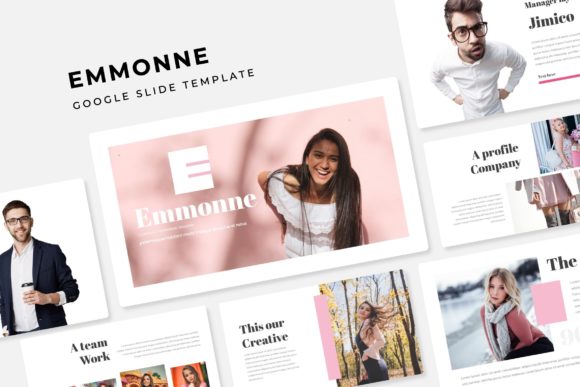
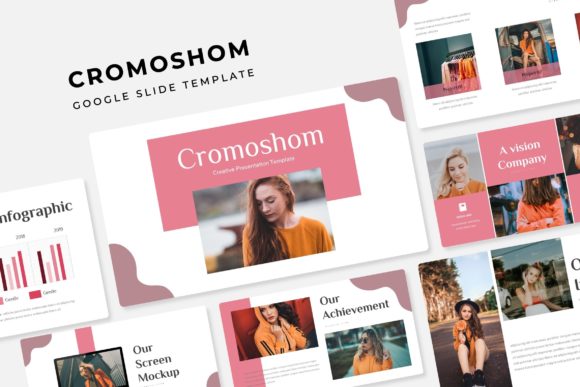
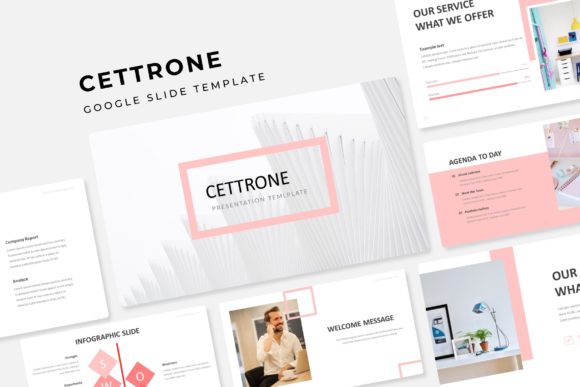
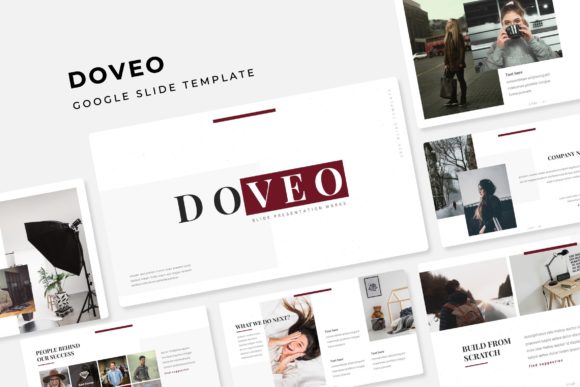
A note worth emphasizing: the photographs and pictures displayed in the preview are for illustration only. They are not included in the template files. This is a standard practice with presentation templates, but it is important to plan accordingly. You will need to supply your own images or source them from royalty-free libraries. The picture placeholders are designed to make this process as smooth as possible — you drag and drop your chosen images, and they snap into place.
How Different Users Benefit in Different Ways
An entrepreneur launching a startup might use the template to build their pitch deck, relying on the infographics to explain their business model and the section breaks to separate problem, solution, and financials. A university professor might use the gallery slides to display student work or research findings. A human resources lead could repurpose the same template for onboarding materials, using the color variations to differentiate between departments or training modules.
What makes the Feature Google Slide Template genuinely useful across these scenarios is its balance between structure and flexibility. It gives you enough ready-made layouts to avoid blank-page anxiety, but it does not lock you into a single visual direction. The five color variations and editable graphics let you adapt the template to your context, not the other way around.
Strengths and a Couple of Practical Limitations
Its main strength is the sheer volume of slide layouts. With 150 slides across five color sets, you are unlikely to run out of variety for most presentation needs. The handcrafted infographics and section break slides add professional depth that typical templates lack. And because everything is built on master slides, consistency is nearly automatic.
One limitation to keep in mind is that the preview images are not included, so you will need to source your own photographs or graphics. If you are working under a tight deadline and hoped for ready-to-use imagery, you will need to carve out extra time for that step. Another consideration: while the template works within Google Slides, the PPTX file format is best opened in either Google Slides or modern versions of PowerPoint for full editing capability. Older software versions may not handle all the master slide features perfectly.
Still, for anyone who regularly creates presentations and values both efficiency and aesthetic quality, this template offers a practical, reusable resource. Whether you are preparing for a single high-stakes pitch or building a library of slide decks for recurring meetings, the Feature Google Slide Template provides the range and polish to help you communicate with clarity and impact.