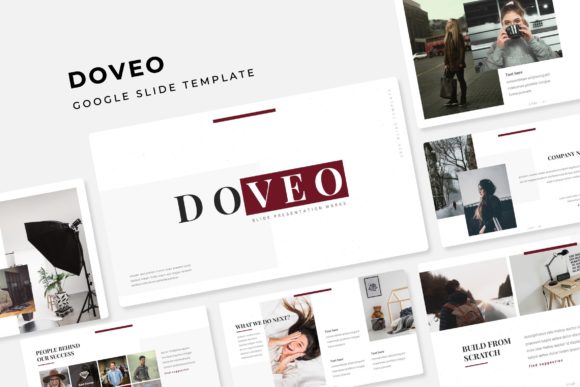
Doveo Google Slide Template: A Practical Framework for Polished Presentations
If you have ever started a presentation from a blank slide, you already know the friction. The cursor blinks. You hunt for fonts. You resize images by hand and hope the alignment holds. That process eats time that could go toward refining your message. The Doveo Google Slide Template removes that friction by giving you a structured library of 150 slides organized around five premade color variations, each with 30 slides. Instead of building from zero, you select, adapt, and move forward.
What the Doveo Google Slide Template Actually Contains
At its core, this template is a set of five complete Google Slides files. Each file uses a distinct color palette, and every palette contains 30 slides. That totals 150 slides across the collection. The slides are built on master slides, which means any change you make to the master layout propagates consistently across all slides that depend on it. This is not a loose collection of disparate designs. It is a system.
Inside each file you will find:
- Handcrafted infographics that visualize data without forcing you to build charts from scratch
- Section break slides that create natural pauses in longer presentations
- Gallery and portfolio slides that display images or work samples cleanly
- Resizable and editable graphics that scale without distortion
- Picture placeholders that accept drag-and-drop image insertion
- Pixel-perfect illustrations that keep their sharpness on any screen
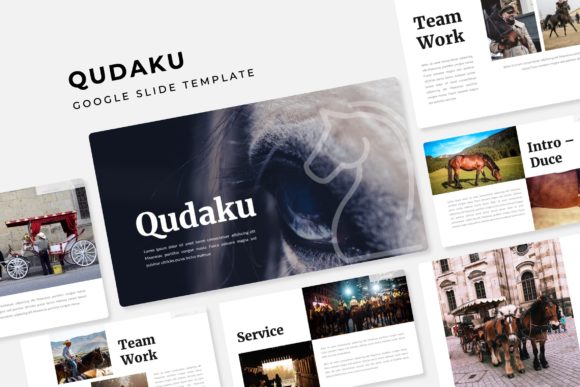
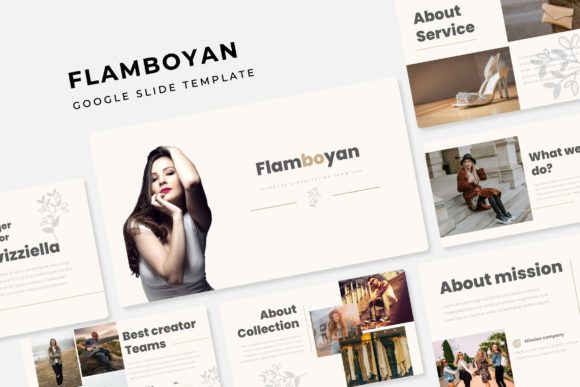
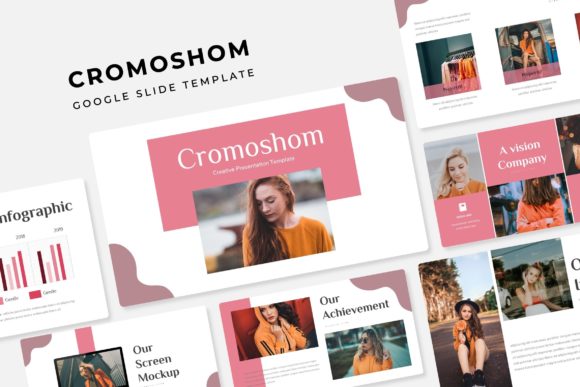
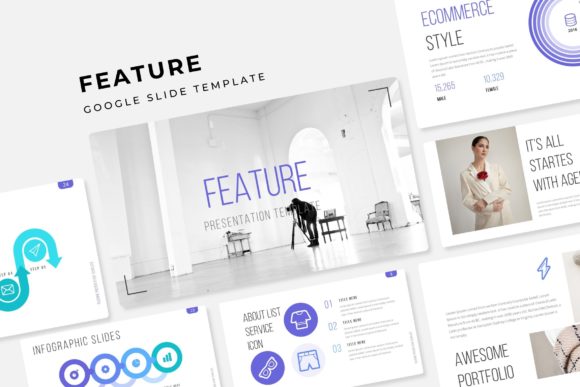
The package includes five PPTX files and five PPTX widescreen files, plus a Readme First document with font details and a link to download the free fonts used. The photographs shown in the previews are for illustration only and are not included, so you will supply your own images.
Where This Template Fits in a Real Workflow
Presentations rarely exist in isolation. They sit between research and decision-making. They follow data collection and precede approval. They support a pitch, a training session, or a quarterly review. The Doveo Google Slide Template is designed to fit into that middle ground where you have content but need structure.
When you open the template, you are not starting from a blank canvas. You are browsing a library of slide types that match common presentation needs. This shifts your focus from layout decisions to content decisions. Instead of asking yourself how to arrange three images and a caption, you pick a gallery slide and drop your images into the placeholders. The composition is already resolved.
Before the Presentation: Planning and Preparation
The most efficient use of this template begins before you write a single headline. Open the file that matches the color palette you want. Scan the 30 slides. Identify which slide types correspond to the sections of your outline. If you need an opening slide, a section break, three content slides, and a closing slide, you can select those specific layouts and delete the rest. This gives you a skeleton that already follows a consistent visual language.
Because the template uses master slides, you can adjust the base font, the accent color, or the background treatment once, and every slide inherits that change. This matters when you are preparing a deck for a client or a leadership team and need to match brand guidelines. You are not updating each slide individually. You update the master, and the work is done.
During the Build: Assembly Without Redundancy
Building the actual slides becomes a process of replacement rather than creation. The placeholders expect content. You drag your own images into the picture placeholders. You edit the text directly in the pre-styled text boxes. You customize the infographics by changing the data labels, percentages, or icons to match your figures. The graphics are resizable, so if a diagram needs to be larger or smaller, you can scale it without breaking the layout.
The section break slides are especially useful for longer decks. A five-minute presentation might not need them, but a thirty-minute training session or a project update with multiple phases benefits from clear visual transitions. The audience sees a section break and mentally resets for the next topic. This improves retention and reduces confusion.
If your presentation includes a portfolio or a gallery of work, the dedicated slides handle that cleanly. Instead of squeezing images into awkward grids, you use a layout designed for visual balance. The pixel-perfect illustrations keep everything sharp, even when projected on a large screen.
After the Presentation: Repurposing and Reuse
Once you have built a deck using the Doveo Google Slide Template, that file becomes a resource. You can extract individual slides for use in other presentations. You can copy a slide deck and swap the color palette to create a version for a different department or client. The five premade colors give you options without requiring a redesign.
The template also works across platforms. Because it is built for Google Slides, you can access it from any device with a browser. The included PPTX files mean you can open the same layouts in Microsoft PowerPoint if your team uses that ecosystem. This cross-compatibility reduces friction when collaborating with people who use different tools.
Practical Implementation Tips
Getting the most out of this template requires a few intentional choices. Here are observations from using similar structured templates in real projects.
Choose Your Color Palette First
Each of the five templates has a distinct mood. One might use cooler tones suitable for financial data. Another might use warmer tones for creative pitches. Open all five files side by side and pick the one that aligns with your content and audience. Once you choose, delete the other files from your working folder to avoid confusion.
Customize the Master Slide Before Adding Content
Go to the master view and adjust the default fonts, the background color, and the accent treatments. This takes ten minutes and saves you from making those adjustments on every slide later. The Readme First document tells you which fonts are used, and the download link lets you install them for free. Use those fonts to maintain the intended typography.
Use the Infographics as Data Storytelling Tools
The handcrafted infographics are not decorative. They are designed to communicate numbers visually. When you have a statistic, a comparison, or a process flow, find the infographic slide that matches that structure. Replace the sample data with your own. This is faster than building a chart from scratch and often looks more polished than default chart tools.
Reserve the Gallery Slides for Visual Proof
If your work involves case studies, product shots, or portfolio items, the gallery slides give you a professional display format. Drop your images into the placeholders. The layout handles the spacing and alignment. This is particularly useful for freelancers, creatives, and small business owners who need to showcase work without spending hours on layout.
How It Interacts with Other Tools and Resources
The template works as a standalone system, but it integrates with other parts of your workflow. You can pull data from spreadsheets and paste it into the infographic slides. You can export final slides as PDFs for distribution. You can embed the finished deck on a website or share it via a link. The template does not lock you into a single output format. It is a starting point that adapts to how you already work.
If you use project management tools or content planning systems, the template helps you maintain consistency across multiple presentations. A team of marketers can all use the same template, and the brand identity stays intact. An educator can create a semester of lectures using the same visual structure, and students benefit from the predictable format.
Usability and Quality Control Considerations
Because the slides are built on master slides, the template enforces consistency automatically. This reduces the chance of mismatched fonts, inconsistent spacing, or misaligned elements. When you hand a partially built deck to a colleague, they cannot accidentally break the layout because the master constrains the available options.
The resizable and editable graphics are vector-based or high-resolution, so they remain crisp at any scale. The picture placeholders accept standard image formats, and the drop-in process works as expected. No special software or plugins are required.
For long-term use, keep the original template files in a dedicated folder. When you start a new project, make a copy of the relevant color variation rather than modifying the original. This preserves the baseline so you always have a clean starting point.
Who Benefits Most from This Structure
Professionals who deliver regular updates to stakeholders will appreciate the time savings. Entrepreneurs who pitch to investors can maintain a consistent look without hiring a designer. Educators who build lecture decks can focus on content instead of formatting. Freelancers and small business owners who create client-facing materials can present a polished image with limited design skills.
The template is also useful for hobbyists who run community groups, workshops, or personal projects that require a presentation. The learning curve is shallow. If you have used Google Slides before, you can start working with the template immediately.
A Note on Images and Assets
The preview images are not included, so you need to supply your own photographs and graphics. This is standard for professional templates. It gives you control over the imagery and avoids licensing issues. The template handles the layout and styling. You bring the content that tells your story.
In practice, this separation works well. You can use your own product photos, team headshots, screenshots, or stock images from a source you already use. The picture placeholders are sized to accommodate standard aspect ratios, and you can adjust the crop inside the placeholder if needed.
Final Observations on Workflow Integration
The Doveo Google Slide Template reduces the distance between having content and having a finished presentation. It does not write your script, analyze your data, or decide your narrative. What it does is remove the structural decisions that slow you down. You choose a color. You pick slide layouts. You drop in your content. The result is a cohesive deck that looks intentional.
For anyone who creates presentations regularly, this kind of system is not a shortcut. It is a process improvement. The time you save on formatting goes into the parts of the presentation that actually matter: the message, the evidence, and the delivery.