Ramora Power Point Template: What Most Users Get Wrong
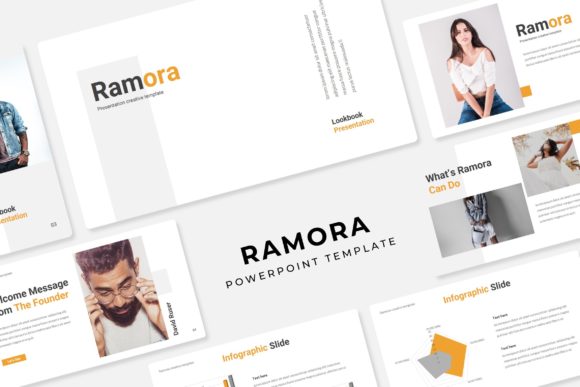
If you have browsed presentation templates recently, you have likely seen the Ramora Power Point Template. It promises 150 total slides across five color variations, handcrafted infographics, and pixel-perfect illustrations. On paper, that sounds like everything you need. In practice, many people download it and still end up with a presentation that feels flat, cluttered, or mismatched. The problem is rarely the template itself. It is usually how people choose, set up, or customize it.
I have worked with slide templates for years, and I have seen the same misunderstandings surface again and again. The Ramora template is more capable than most users realize, but only if you avoid a handful of common pitfalls. Let me walk you through the mistakes that matter and show you how to get the full value out of what is already included.
Mistaking Variety for Versatility
The Ramora Power Point Template comes with five premade colors and 30 slides per template, giving you 150 total slides. That is a lot of material. But here is where people slip: they think more slides automatically mean a better presentation. They start mixing slides from different color variations in the same deck, thinking variety will keep things interesting. Instead, the presentation ends up looking like a patchwork of unrelated themes.
Keep it simple. Pick one color variation and stick with it across your entire deck. The five color options are designed to help you match your brand or tone, not to be combined. If you need to use elements from another variation, duplicate the master slide set you chose and recolor manually rather than pasting slides from a different file. Consistency builds trust with your audience, and the Ramora template gives you enough depth within a single color scheme to cover any topic.
Overlooking Master Slides and Resizability
One of the most useful features in the Ramora Power Point Template is that it is based on master slides. That means any change you make on the master slide updates across every slide that inherits from it. Yet I see people editing each slide individually. They resize a logo on slide 5, then again on slide 12, then again on slide 23. It is tedious, error-prone, and completely unnecessary.
Here is a better approach: before you add a single piece of content, go into Slide Master view and adjust the layout placeholders, font sizes, and colors. If you know your company logo needs to sit in the top right corner, set that once on the master. The Ramora template includes resizable and editable graphics, so take advantage of the fact that those elements are linked. Spending fifteen minutes setting up your master slides will save you hours of repetitive formatting later.
Misusing the Handcrafted Infographics
The Ramora Power Point Template includes handcrafted infographics, and they look polished right out of the box. The mistake people make is treating them as decorative filler rather than as communication tools. I have seen slides where an infographic is dropped in simply because it looked nice, with no clear connection to the data or message on that slide. The result is visual noise that distracts rather than clarifies.
Use infographics only when they simplify a concept or highlight a relationship that text alone cannot convey well. The Ramora infographics are designed to be editable, so customize the labels, colors, and data points to match your specific numbers. If an infographic does not directly support the point you are making, leave it out. A clean slide with one clear visual is always more effective than a crowded slide with several half-relevant graphics.
Neglecting Section Break Slides
Section break slides are one of the most underused assets in any template. The Ramora Power Point Template includes dedicated section break slides, and they serve a specific purpose: they give your audience a moment to reset and signal that you are moving to a new topic. Many presenters skip them entirely or treat them as just another content slide, filling them with bullet points.
Use section breaks as transitions. Keep them minimal—a bold title, a subtle background, maybe one icon or image. The Ramora template offers clean section break layouts that work well when you leave them sparse. Your audience will appreciate the breathing room, and your presentation will feel structured rather than rushed. If you have a longer deck, section breaks also make it easier for viewers to reference specific parts during Q&A.
Ignoring the Gallery and Portfolio Slide Options
The Ramora template includes gallery and portfolio slide layouts, which are ideal for showcasing work, team photos, or project snapshots. The common mistake is using these slides as dumping grounds for every image you have. People throw in ten photos, resize them badly, and end up with a cluttered mess that confuses the audience.
Curate your images first. Pick the three to five strongest visuals that support your story, and use the Ramora gallery layouts to present them consistently. The picture placeholders are drag-and-drop, so you can swap images quickly without breaking alignment. If you have more than five images, consider splitting them across two slides or linking to an online portfolio. The goal is clarity, not completeness.
Forgetting the Free Font Download Link
This may seem like a small detail, but it causes more frustration than almost anything else. The Ramora Power Point Template uses specific fonts, and the Readme First file includes a link to download them for free. I have watched people spend hours manually adjusting font sizes and positions because the fonts were missing on their system. The template looks wrong, the spacing breaks, and they assume the design is flawed.
Before you do anything else, open the Readme First file, click the font download link, install the fonts, and restart PowerPoint. That one step ensures every slide renders exactly as designed. If you are sharing the file with colleagues who may not have the fonts, embed the fonts in the file before sending it. The Ramora template is pixel-perfect only when the fonts are present.
Confusing Included Content with Stock Photography
The product description clearly states that photographs used in the preview are for illustration purposes only and are not included. Yet I regularly hear from people who download the template and then complain that the photos are missing. This misunderstanding can derail your timeline if you expect ready-to-use images and have to scramble to find replacements.
Plan ahead. The Ramora Power Point Template includes the slide layouts, graphics, icons, and design elements, but you need to supply your own photographs. The picture placeholders are designed to make this easy, so compile your images before you start building your deck. If you do not have original photos, use high-quality free stock image sites that offer clear licensing. The placeholder frames in Ramora are sized for standard aspect ratios, so crop your images to fit before dropping them in.
Treating All 150 Slides as a Single Deck
Having 150 total slides across five templates does not mean you should use all of them in one presentation. The Ramora Power Point Template is a library of options, not a single deck to be delivered start to finish. I have seen people try to cram every layout into a single file because they want to show off the template. The result is a bloated, repetitive presentation that loses the audience halfway through.
Select only the slides that serve your narrative. If you are giving a ten-minute pitch, you probably need 8 to 12 slides total, even if the template offers 30 slides per color. The extra layouts are there for different use cases, not for one marathon deck. Being selective shows that you understand your audience and respect their time.
Overlooking Widescreen Format Requirements
The Ramora Power Point Template comes in widescreen format, which is standard for most modern projectors and screens. But many users still design in standard 4:3 and then wonder why the slides look stretched or have black bars. The mistake is not checking the slide size before you start editing, or worse, changing the aspect ratio after you have already placed content.
Confirm your output format before you begin. If you know you will present on a widescreen display, keep the template as is. If you must switch to 4:3, adjust the master slides first and verify that all elements scale properly. The Ramora template is built to look sharp in widescreen, and that is where it shines brightest. Fighting the aspect ratio only creates extra work and reduces visual quality.
Skiking the Readme First File Entirely
This is the most avoidable mistake of all. The Readme First file contains the font download link, usage notes, and tips for getting started. Many users delete it or ignore it because they want to jump straight into designing. Later they run into font issues, placeholder confusion, or color mismatch problems that were explained clearly in that first file.
Take five minutes to read the Readme First file. It will tell you which fonts to install, how to access the five color variations, and what each file contains. The Ramora Power Point Template is well-organized, but you need to understand the structure to use it efficiently. Skipping the instructions is like assembling furniture without looking at the diagram—you will get there eventually, but it will take longer and the result may not be as clean.
Making the Template Fit Your Workflow Instead of Adapting Your Workflow to the Template
The Ramora template is built on master slides, drag-and-drop placeholders, and consistent color palettes. That structure rewards planning and penalizes haphazard editing. People who jump between slides, paste content from old decks without reformatting, or ignore the grid lines will always struggle, no matter how good the template is.
Take a moment to think about how you work. If you tend to build slides on the fly, set up your master slides first, then create a folder with your chosen color variation and start with a clear outline. The Ramora template is designed to speed up your workflow, but it cannot fix a disorganized process. Treat the template as a foundation, and build your content on top of it intentionally.
The Ramora Power Point Template is one of the more flexible options available, with 150 total slides, five premade colors, and handcrafted infographics that actually look professional. But what separates a good presentation from a great one is not the template itself. It is how you use it. Avoid the mistakes above, and you will get a deck that feels custom-made, consistent, and clear.