How to Build Your Memorial Day Weekend Social Media Post and Event Strategy Around a Fully Editable Flyer
Memorial Day Weekend marks the unofficial start of summer, a time when gatherings, backyard barbecues, and evening parties take center stage. Whether you are hosting a private celebration, promoting a club event, or running a small business special, the visual assets you use can determine how many people actually show up. A well-designed flyer that works across print, social media, and messaging apps gives you a single source of truth for your entire promotional effort.
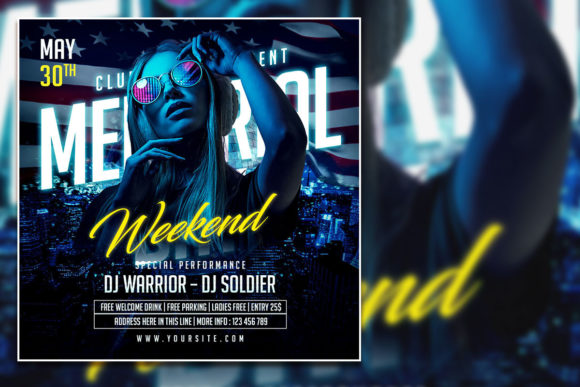
The Memorial Day Weekend Social Media Post and Editable Memorial Day Invitation flyer is a 2000×2000 pixel, 300 dpi PSD file with organized layers and editable text. It is built in Adobe Photoshop, and every element from the headline to the background image can be replaced. This means you are not locked into a generic template. You can adapt the same file for a family cookout, a night club event, a retail promotion, or a nonprofit fundraiser without starting from scratch each time.
Where This Flyer Fits in Your Broader Planning Process
Event promotion rarely follows a straight line. You might begin with a date, a venue, and a rough guest list, then move to creating a visual that captures the mood. This flyer acts as the central creative asset that feeds into multiple channels:
- Social media posts – Instagram, Facebook, and TikTok all benefit from square or vertical images. The 2000×2000 pixel size is ideal for most platforms without cropping distortion.
- Email invitations – Embed the flyer in your newsletter or attach it as a preview image.
- Printed handouts – At 300 dpi, the file prints cleanly at standard sizes up to roughly 6.7×6.7 inches, or larger if you don’t need razor-sharp detail.
- Text message or WhatsApp shares – A single image file is easier to forward than a link that requires loading.
By working from one editable PSD, you avoid the common trap of designing a social post, then manually recreating it for print, then tweaking the colors for a different platform. Every change happens in one file, and you export the versions you need.
Before the Event: Building Anticipation and Confirming Details
In the weeks leading up to Memorial Day Weekend, your audience is deciding how to spend their time. A polished flyer posted on social media signals that your event is organized and worth attending. Because the PSD file is fully editable, you can create a series of posts that share different information:
- Initial tease – Use the flyer with a bold “Save the Date” overlay and the location blurred out to generate curiosity.
- Details reveal – Replace the placeholder text with the exact time, address, ticket price, and dress code.
- Countdown posts – Duplicate the PSD, change the main text to “3 Days Away,” and update the date overlay.
- Guest list push – If you have a performer, chef, or special activity, add their name and a photo swap using the organized layers.
The layer structure of the PSD makes these edits fast. Since text layers are clearly labeled, you can select any headline, subhead, or body copy with the Text tool and type your own content without affecting the layout. The font remains consistent, so your visual identity stays intact across all posts.
During the Event: Real-Time Social Proof and On-Site Signage
Once the weekend starts, you can repurpose the same flyer for on-site use. Print a few copies at a local print shop or on your own color printer and place them at the entrance, near the bar, or on picnic tables. The 300 dpi resolution ensures the text remains sharp at small sizes.
Take a photo of the actual event with guests, then drop that photo into the PSD file by replacing the placeholder image. Post the updated version during the party with a caption like “We’re live – come join us.” This blend of pre-designed layout and real-time photography feels both professional and authentic.
If you are a business owner running a Memorial Day Weekend sale, you can print the flyer as a counter card or window sign. Change the headline to “Weekend Sale – 20% Off Everything” and update the photo to show your best-selling product. The editable layers let you make that switch in under a minute.
After the Event: Follow-Up and Future Engagement
Post-event recap posts are often overlooked, but they help build momentum for your next gathering. Open the same PSD file, replace the photo with a group shot from the party, and change the headline to “Thank You for an Amazing Memorial Day Weekend.” Add a teaser line like “Save the Date for Our July 4th Event” to keep your audience looking ahead.
Because the file structure is organized, you can archive the final PSD along with your exported JPGs and PNGs. Next year, open the archive, update the date and details, and your Memorial Day Weekend promotion is nearly complete.
How This Flyer Interacts with Other Tools and Platforms
No design exists in isolation. The PSD file connects with your broader workflow in several practical ways:
- Adobe Photoshop – This is the required editing environment. If you already use Photoshop for photo editing or other design work, the layer naming and folder structure will feel familiar. If you are new to Photoshop, the organized layers reduce the learning curve.
- Stock photo libraries – You can replace the included photo with your own image or a licensed stock photo. The 2000×2000 canvas gives you flexibility to crop without losing composition.
- Social media schedulers – Export the final design as a JPG or PNG and upload it to tools like Later, Buffer, or Hootsuite. Schedule your posts to go live at optimal times during the holiday weekend.
- Print-on-demand services – If you want stickers, magnets, or small promotional items, the PSD file can be exported as a high-resolution PDF or TIFF for professional printing.
- Collaboration – Share the PSD file with a team member via cloud storage. Because the layers are labeled, your coworker can find and edit the date or location without guessing.
This interconnectivity means the flyer is not a one-time asset. It becomes a reusable template that saves time every holiday or event where you need a quick, professional invitation.
Practical Implementation Tips for a Smooth Workflow
To get the most out of this editable Memorial Day flyer, consider a few setup steps before you start customizing:
- Open the PSD in the right version of Photoshop. The file is built with standard layer features, so it works in Photoshop CS6 and later, including Creative Cloud versions. If you are using an older edition, verify that your software supports PSD files with organized layer groups.
- Review the layer structure first. Expand the layer groups in the Layers panel. Look for folders named “Text,” “Background,” “Photo,” and “Graphics.” This orientation takes two minutes and prevents accidental edits to locked elements.
- Replace the photo early in the process. The photo layer is likely a smart object or a standard raster layer. Drag your own image onto the canvas, resize it with the Free Transform tool, and position it behind the text. If the flyer uses a clipping mask, right-click the photo layer and choose “Create Clipping Mask” so it fits within the designated frame.
- Change fonts selectively. The file comes with specific typefaces. If you want to use a different font, simply select the text layer with the Text tool, highlight the text, and choose your preferred font from the Character panel. The text will reflow within its bounding box. For headlines, you may need to adjust the font size or tracking to maintain alignment.
- Save as PSD while you work. Keep the editable version intact. When you are ready to share, use File > Export > Export As to create a JPG (for social media) or PNG (for higher-quality sharing). For print, export as a PDF with the preset “High Quality Print.”
- Test on mock devices. Before you post, check how the flyer looks on a phone screen. The 2000×2000 square format works well on Instagram, Facebook, and LinkedIn, but preview it in your scheduler or app to ensure the text is readable at small sizes.
Organizational Factors That Affect Your Final Outcome
The quality of your final post or invitation depends on a few decisions you make before and during editing:
Photo selection. The flyer is designed to let your image carry the emotional weight. Choose a photo that reflects the mood of your event – bright and casual for a daytime BBQ, darker and energetic for a night party. Because you can replace the photo entirely, you are not limited to stock imagery. A candid shot from last year’s gathering often performs better on social media than a polished stock photo.
Font legibility. The placeholder text uses a clean, readable typeface. If you swap fonts, avoid script or decorative faces for critical details like the date, time, and address. Save those for the headline or decorative accents where readability is less essential.
Color consistency. The PSD file uses an RGB color mode, which is perfect for digital screens. If you plan to print the flyer, convert a copy to CMYK using Edit > Convert to Profile, or let your print shop handle the conversion. Keep a separate RGB version for social media to retain the brightest colors.
Layer organization. Because the file comes with organized layers, resist the urge to flatten them during editing. Keeping layers intact allows you to make quick changes later, reuse the file for a different event, or hand it off to a colleague without confusion.
Long-Term Use and Reusability
This flyer template is not a one-weekend tool. After Memorial Day Weekend, archive the PSD with a clear file name such as “2025_MemorialDay_Flyer.psd.” Next year, open the file, update the date, refresh the photo, and adjust the text. The design will remain current because you control every element.
For small business owners, the template serves as a consistent brand element across multiple holidays. Use the same layout for July 4th, Labor Day, or a summer sale, and customers will begin to recognize your visual style. Over time, the time saved by not recreating a layout from scratch adds up to hours of productive work that can go into other parts of your business.
Freelancers and content creators can offer this type of editable flyer as a service to clients. Because the file is straightforward to customize, you can deliver a finished social media post and a print-ready invitation in under an hour. The organized layer structure reduces the risk of sending a file with broken formatting.
Bringing It All Together for a Smooth Memorial Day Weekend
Promoting a Memorial Day Weekend event does not require a complicated design workflow. With a single, fully editable PSD file that handles both social media posts and printed invitations, you can move from initial idea to published promotion in a matter of minutes. The 2000×2000 pixel canvas, 300 dpi resolution, and organized layers give you control over every visual detail without demanding advanced design skills.
Start by opening the file in Adobe Photoshop, replace the photo with your own image, update the text to match your event details, and export the versions you need for digital and print use. The same file can carry you through the entire event lifecycle: building anticipation before the weekend, providing signage and real-time posts during the event, and thanking attendees afterward.
Memorial Day Weekend is about gathering, remembering, and celebrating. The right invitation or social post helps ensure that the people you want to reach actually show up. An editable flyer puts that power directly in your hands, with no design experience required beyond selecting text and dragging an image into place.